Teams, User Management, and Project Access
User Management
Invite new users into your organization's account using the Teams page, found in the top navigation bar. The Teams page also lets you...
- view who’s in your organization's account
- view and manage which Teams each user is a part of
- resend invitation emails to users with pending invitations
- edit the First/Last name on each user
Project Access
- Users who are part of the Team that owns a Project have full access, including the ability to edit the Project’s setup and view results in Insights.
- Users who are not part of that Team cannot view or access the Project.
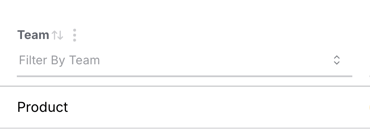
To find which Team a Project belongs to, check the Teams column on the Projects page.
- Each Project within your company’s Highlight account belongs to one Team.
- Each user can belong to one or many Teams within the company account.
- To adjust Teams within your company account, contact your Highlight rep.
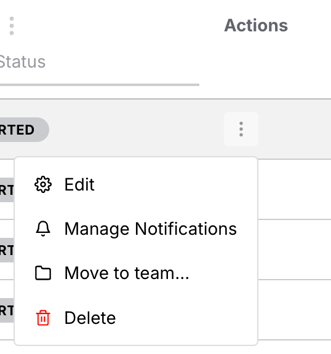
- Go to your Projects page
- Find the right-most column of the table called Actions
- For the Project you want to adjust, click Move to team
- You will be able to move a Project between any of the Teams your user belongs to
Still need help? Browse the Help Center.